Most productivity systems fail for a simple reason: they sit outside your workflow. You either memorize shortcuts, keep a notes file open, or constantly break focus to search “how do I…?”.
A more practical approach is to bring the cheat sheet directly into your workspace – always visible, context-aware, and lightweight.
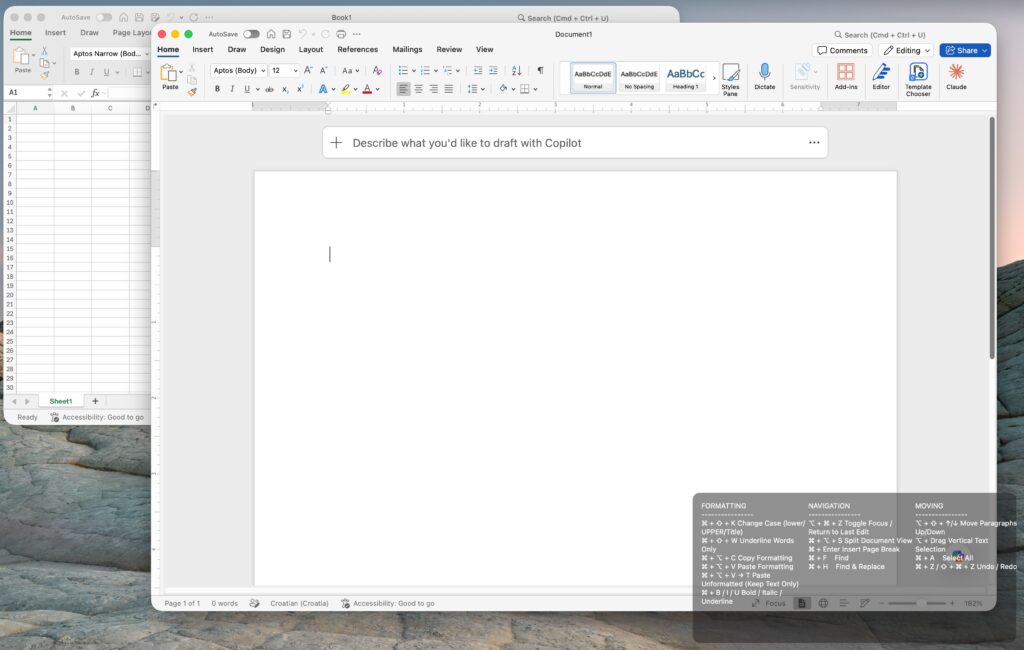
This is where tools like Hammerspoon on macOS and AutoHotkey on Windows become extremely powerful. Combined with a small always-on-top transparent overlay, they can transform how you interact with applications like Word, Excel, and Fusion 360.
The Core Idea: Context-Aware Shortcut Overlay
Instead of memorizing dozens of shortcuts per application, you display only the relevant ones in a small floating window that changes based on the active app.
For example:
- Microsoft Word → writing and formatting shortcuts
- Microsoft Excel → data navigation and analysis shortcuts
- Fusion 360 → modeling, sketching, and camera controls
The goal is not to eliminate learning shortcuts, but to remove friction while you’re working.
Why This Works
Most productivity loss happens during micro-interruptions:
- “What was the shortcut for this again?”
- Switching to browser to search it
- Losing focus and flow
An on-screen cheat sheet helps by:
- Reducing cognitive load
- Reinforcing learning through repetition
- Keeping attention inside the tool you’re using
- Helping you transition between complex applications faster
Over time, frequently used shortcuts become automatic, while rarely used ones remain instantly accessible.
Example 1: Microsoft Word Overlay
When Microsoft Word is active, your overlay might show:
Writing & Formatting
- Ctrl + B → Bold
- Ctrl + I → Italic
- Ctrl + U → Underline
- Ctrl + E → Center align
Productivity Editing
- Ctrl + Shift + C → Copy formatting
- Ctrl + Shift + V → Paste formatting
- Ctrl + Z → Undo
- Ctrl + Y → Redo
Navigation
- Ctrl + F → Find text
- Ctrl + H → Replace text
- Ctrl + Arrow → Jump by word
Instead of digging through menus, you simply glance at the corner of your screen.
Example 2: Microsoft Excel Overlay
When Microsoft Excel is active, the overlay switches to data-focused shortcuts:
Data Handling
- Ctrl + T → Create table
- Ctrl + Shift + L → Toggle filters
- Ctrl + Arrow → Jump across data regions
- Ctrl + Space → Select column
Analysis & Editing
- Alt + Enter → New line in cell
- Ctrl + D → Fill down
- Ctrl + R → Fill right
- F2 → Edit cell
Navigation & Speed
- Ctrl + Page Up/Down → Switch sheets
- Ctrl + Home → Go to start of sheet
This turns Excel from a “menu-heavy tool” into a fast navigation-driven environment.
Example 3: Fusion 360 Overlay
For CAD work in Fusion 360, shortcuts are even more critical because precision and speed matter.
Sketching
- L → Line tool
- R → Rectangle
- C → Circle
- S → Search tools
Editing & Constraints
- D → Dimension tool
- E → Extrude
- Q → Push/Pull (Press Pull equivalent)
- X → Construction geometry toggle
View Control
- Shift + Middle Mouse → Pan
- Middle Mouse → Orbit
- Scroll → Zoom
- F → Fit view
With this overlay, you stop interrupting your modeling flow to “remember where the tool is.”
Building It with Hammerspoon (macOS)
Hammerspoon allows you to:
- Detect active application
- Load shortcut profiles per app
- Render a floating UI overlay (hs.canvas)
- Keep it always-on-top and semi-transparent
Conceptually:
- Detect active app (Word, Excel, Fusion 360)
- Load matching shortcut set
- Display a small corner overlay
- Update instantly on app switch
The key idea is responsiveness: the overlay should feel like part of the OS, not a separate tool.
Building It with AutoHotkey (Windows)
On Windows, AutoHotkey can achieve similar results using:
- Active window detection (
WinActive) - Custom GUI overlays
- Always-on-top window flags
- Transparency settings
The logic remains the same:
- If Word is active → show Word shortcuts
- If Excel is active → show Excel shortcuts
- If Fusion 360 is active → show CAD shortcuts
Even though AutoHotkey’s UI layer is simpler, it is extremely fast to prototype and highly customizable.
Design Principles That Make It Work
1. Keep It Minimal
No more than 5–10 shortcuts per application context.
2. Organize by Workflow
Instead of listing shortcuts randomly, group them:
- Writing
- Navigation
- Editing
- Modeling tools
3. Make It Peripheral, Not Central
The overlay should support your work – not compete with it.
4. Use Consistency Across Apps
Even if shortcuts differ, group structure should remain the same.
Advanced Improvements
Once the basic system works, you can enhance it further:
Adaptive Learning Overlay
Highlight shortcuts you haven’t used recently.
Frequency-Based Ordering
Frequently used shortcuts rise to the top automatically.
Project-Based Profiles
Different overlays for:
- Technical writing
- Financial modeling
- Mechanical design in Fusion 360
Multi-Monitor Awareness
Show different overlays depending on which screen the app is on.
The Real Productivity Gain
The value of this system isn’t just speed, it’s continuity.
Instead of breaking flow:
- Pause → search → switch context → return
You get:
- See → act → continue
That difference, repeated hundreds of times per day, compounds into significantly smoother work.
Final Thought
Productivity isn’t about knowing every shortcut. It’s about reducing friction between intention and action.
With a dynamic overlay powered by Hammerspoon or AutoHotkey, tools like Word, Excel, and Fusion 360 stop being systems you memorize – and become systems that actively guide you while you work.
Free Download: Ready-to-Use Configurations
To make it easier to get started, I’ve attached configuration examples for setting up on-screen shortcut overlays for Microsoft Word, Microsoft Excel and Fusion 360.
These examples are intentionally simple and designed to be extended, so you can quickly adapt them to your own workflow instead of building everything from scratch.
You can download them here for free and start experimenting immediately:

Leave a Reply